For professional translators

A CAT tool, native to the Mac. LinguaTrans.

Open bilingual files from Trados, memoQ, Phrase or Wordfast, work through them keyboard-first, and hand back files that drop straight back into the tool they came from — no broken tags, no reformatting. No Java runtime, no Windows VM, no Electron shell.

€49,99 · one-time purchase
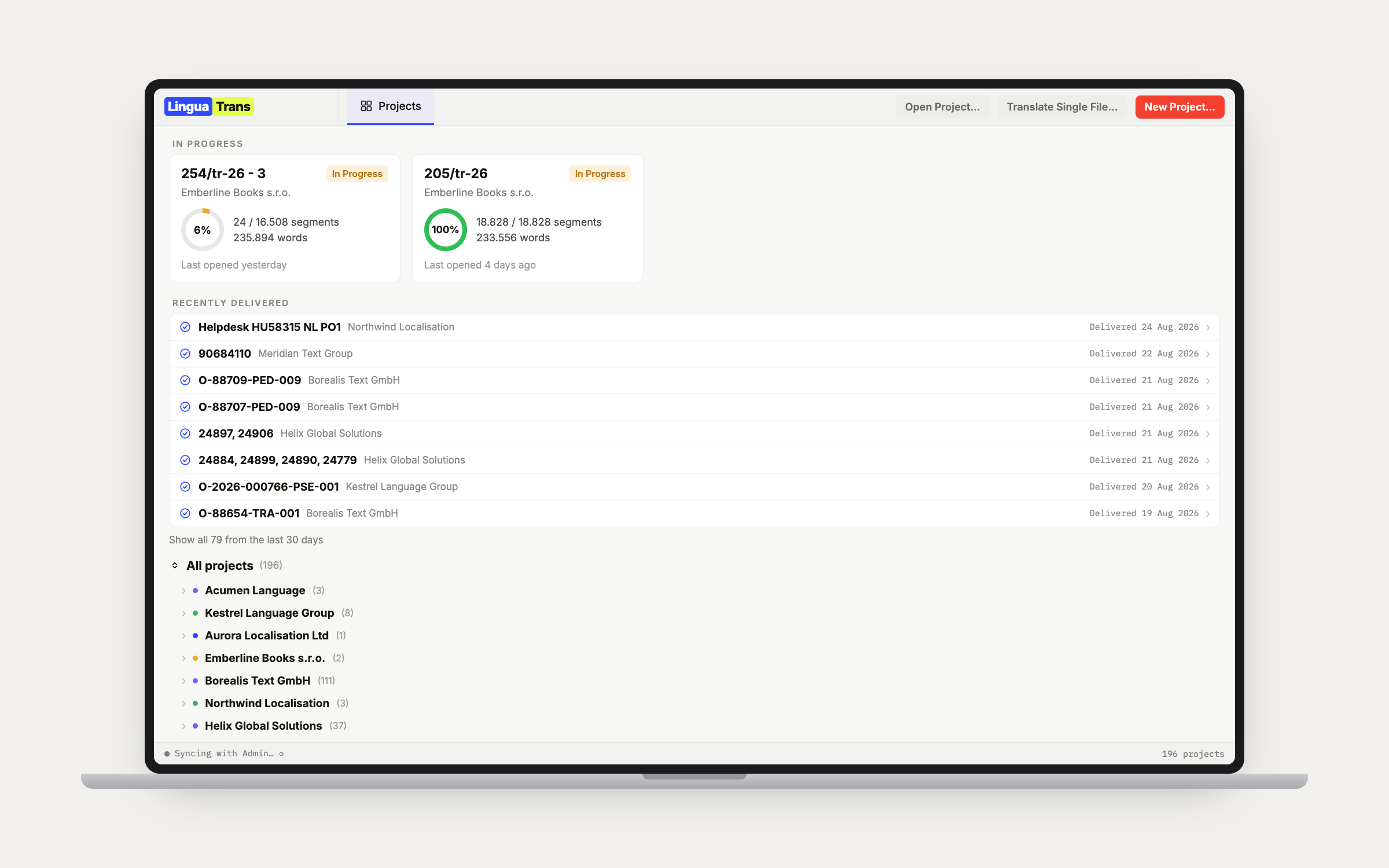
LinguaTrans home screen with in-progress project cards and the client tree
Home — cards for the jobs in progress, most recently worked first, each with its client, language pair, confirmed word count, and a progress ring.

Deadline ahead

The Mac is running out of native CAT tools.

Apple is retiring Rosetta 2, the layer that lets Intel software run on Apple Silicon. When it goes, the Java-based CAT tools that depend on it stop working on Mac. And the cross-platform tools are heading into the browser: Phrase moved its desktop editor into maintenance mode in 2025, with no new development planned. LinguaTrans is built natively in Swift for exactly this reason. It opens the same bilingual files, runs as a real Mac app, and is not going anywhere. Move your work over before the deadline, not after it.

Open a Trados package on a Mac →

The app, feature by feature.

Everything below ships today. Six core surfaces, then the details that make a working day shorter.

01 — Home

Every job, at a glance.

Cards for the jobs in progress, most recently worked first, each with its client, its language pair, how many segments and words are confirmed, and a progress ring that ripens from coral through amber to green, so a 20 percent job and a 70 percent one are tellable apart across the room. Delivered work drops to a quiet row underneath. All projects holds the full client tree, and picking a client focuses everything on that client.

LinguaTrans home screen with in-progress project cards and the client tree

02 — The editor

Keyboard-first, tags intact.

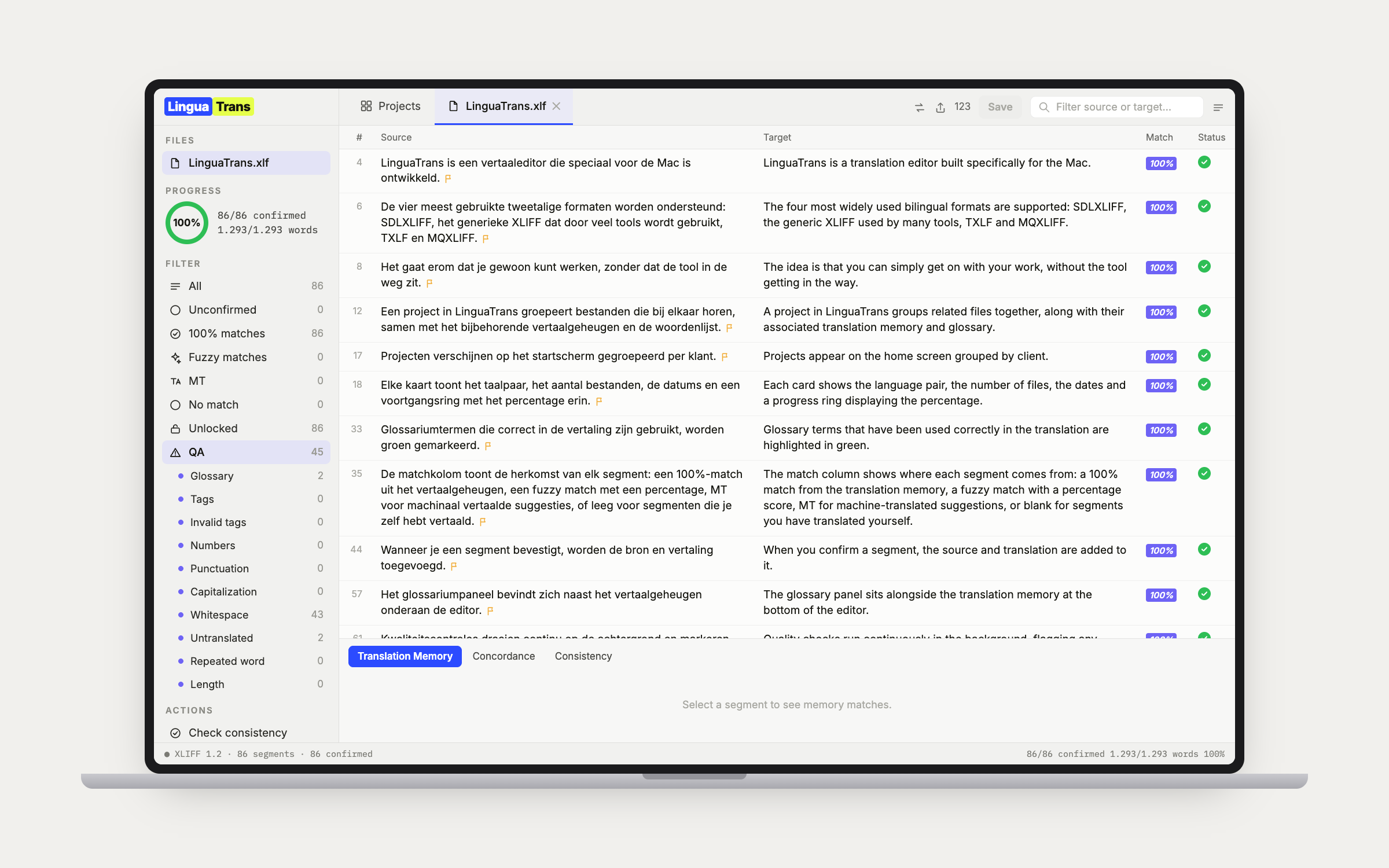
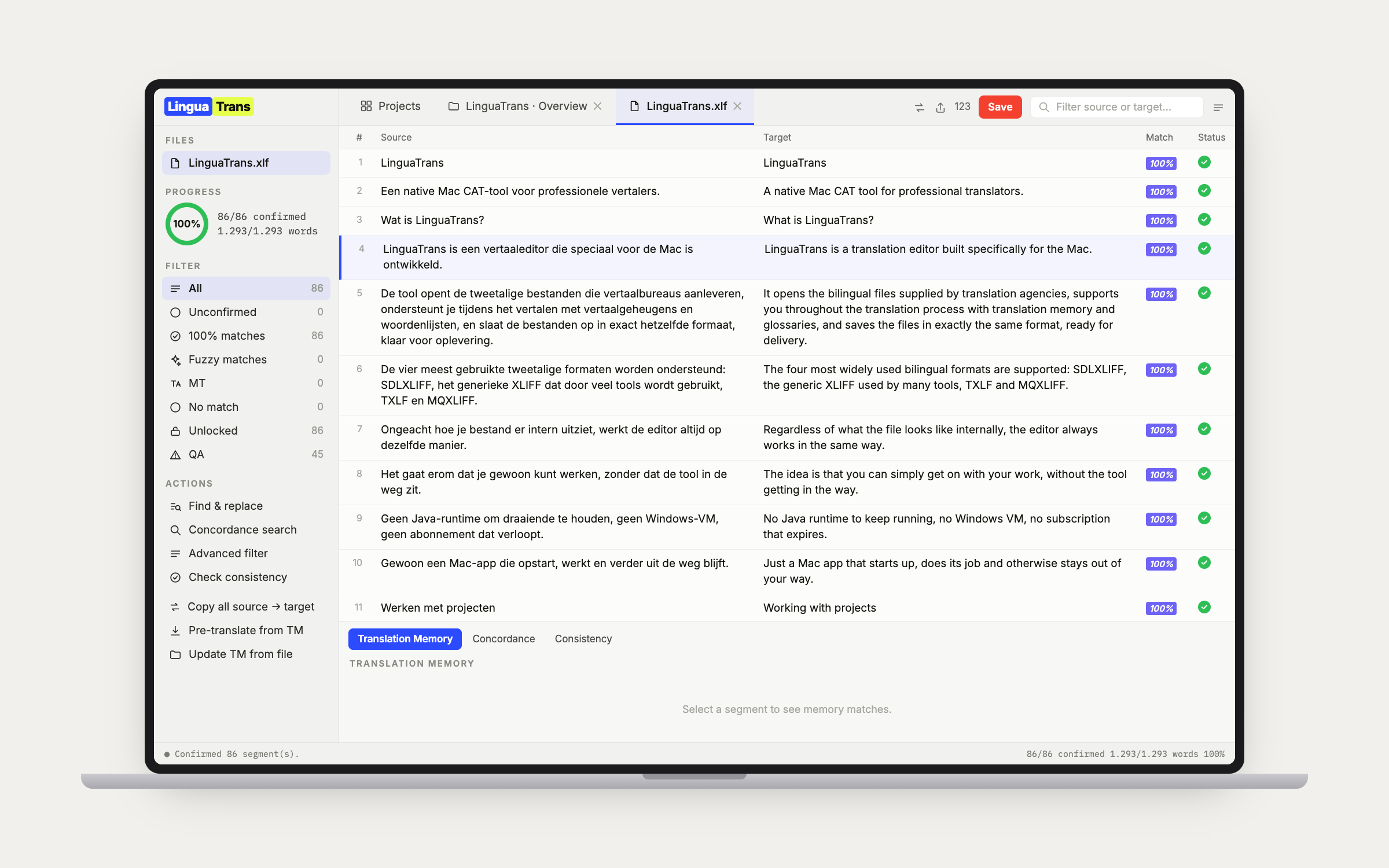
Two-column source/target grid with native Mac inline editing. Inline tag chips survive paste, partial deletion, and saving the file back out, and they drag: move a chip inside your target, or pull one straight out of the source and drop it exactly where it belongs. Confirm + next unconfirmed (⌃↩) is the primary keystroke, and every editor shortcut is remappable. Find and Replace (⌘F) narrows the grid to just the segments that match, and Replace All rolls back in a single ⌘Z. Sidebar buckets filter to Unconfirmed, Approved, 100% matches, fuzzies, MT, no match, Changed, or any single QA check. Approved collects the segments a reviewer already signed off upstream, whatever the file calls it: Trados Translation Approved or Signed Off, memoQ Proofread, XLIFF final. Active row positions about a third down for context above and below. Autosave on confirm, segment leave, and app deactivate. The Advanced Filter, on the funnel beside the Filter field, combines what the sidebar can only show one at a time: tick across status, match, QA check and repetitions, where ticks inside a group mean either and ticks across groups mean all, so "fuzzy matches still unconfirmed" is one filter rather than two that undo each other. Show Invisibles (⇧⌘I) makes whitespace visible on demand, with non-breaking spaces in teal and stowaways like zero-width spaces in coral, and changes nothing but what you see. Fix Quotes, under Actions, reads each quote character for the job it is doing, opening, closing or apostrophe, and converts a mixed file to one style in a single undoable pass, eleven European conventions with the French narrow no-break spaces handled for you. Add a glossary term with ⌃⌘T, next to ⌃⌘L for looking one up: select the source word, select its translation, press the key, press Return. The glossary panel stays open on every tab of the bottom panel, so a concordance hit and the glossary sit side by side.

LinguaTrans bilingual editor with source and target columns and the filter sidebar

03 — Translation memory

A memory per project, with nothing to set up.

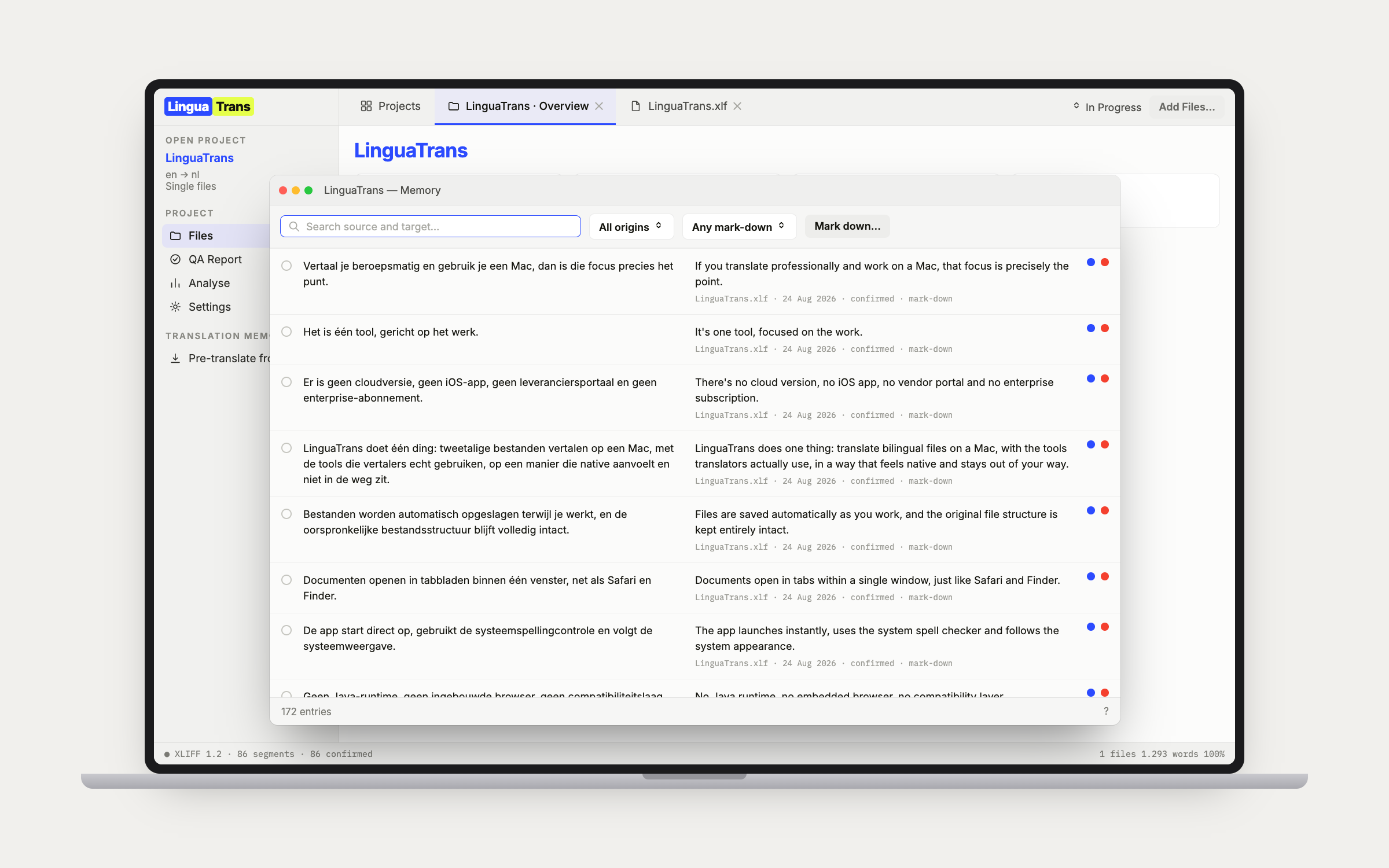
Fuzzy matching with scores, context-match detection, provenance, and dates on every entry that survive the round trip through TMX. The panel sits below the editor as a persistent reference strip, not a modal: click a match to insert it, or strike a wrong entry out of the memory for good. Concordance search runs across every memory the project has attached. Pre-translate fills 100% and context hits as unconfirmed drafts, with fuzzy matches behind a slider if you want them. View Contents opens any memory in its own window, searchable and editable in place, still instant at a million entries. When the memory has no match for the whole segment, the panel shows the entries that share a run of three or more words with your source, the shared run marked, longest first: double-click to insert, or select part of one and insert just that. It is the concordance search you would have typed yourself, run the moment you land on the segment.

LinguaTrans memory window listing entries with origin and mark-down filters

04 — Quality assurance

Checks that never block you.

Checks run live as you work and collect into filterable buckets in the sidebar, so you can pull up just the glossary misses, just the whitespace, just the untranslated. Non-blocking and conservative, on the principle that a false positive is worse than a miss. A small "!" indicator, never a confirm wall, and the only hard gates are an empty target and a tag the source never had, the one thing that would stop the file opening in Trados. Mark Reviewed (⌃⌥R) advances to the next flagged segment, or clear a whole category in one go. Consistency Check as its own tab for identical sources translated differently. Where a finding has one obvious repair, the row offers it as a button: a missing glossary term, a missing tag, trailing punctuation that differs from the source, a wrong first letter, a stray space, or a plain space where the source has a non-breaking one. The tag checks also catch markup written out as text, the way a client's MT engine leaves "<SPAN translate="no">" sitting in the target beside the real tag on a file that came from HTML. Numbers and units are watched two ways: always on, a number the source keeps together with the next word by a non-breaking space, "10 km" as one unit, has to stay together in the target; and per project, Require Non-Breaking Space Before Units flags a plain space between a number and a unit, for a style guide that wants every number and its unit on one line. ⌥Space fixes both.

LinguaTrans editor filtered to the QA bucket, with each check listed in the sidebar

05 — The QA report

One sweep across every file.

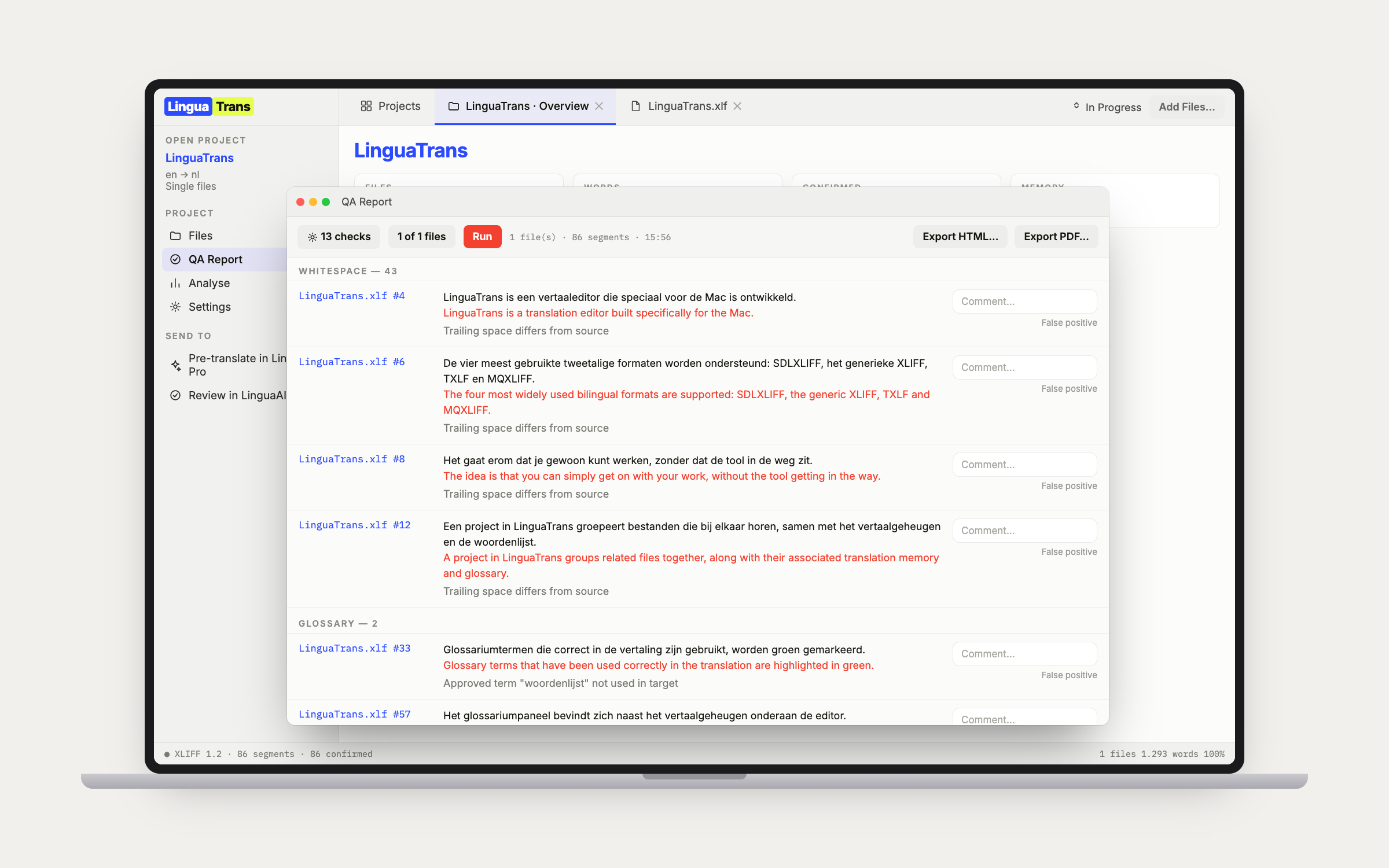
Seventeen checks, run across every file in the project at once rather than one file at a time: Glossary, Rejected terms, Tags, Invalid tags, Numbers, Punctuation, Capitalization, Whitespace, Untranslated, Repeated word, Mixed quotes, Formality, Number spacing, Client rules, inconsistent target for the same source, inconsistent source for the same target, and Comments. Run all of them or any subset, and leave Formality off when it is not that kind of job. Segment numbers are clickable and the report stays open while you fix. Every finding takes a comment and can be marked a false positive, and both survive a re-run. The Whitespace check compares the space touching each tag against the same tag in the source, because a plain space, a non-breaking space and no space are three different answers and the note says which is which — the client's tag verifier applies that same rule when the return package lands. A whole check group can be marked false positive from its header in one press, for the report that is 135 product codes and not one forgotten segment. Beside the findings sit two more views. Phrases lists every source phrase of two to four words that recurs in three or more segments, works out the wording that mostly renders it, and puts the segments that do not carry that wording first, so a term translated four ways across a manual shows as one heading with its outliers underneath. It carries no verdict and stays out of the export, because whether it matters is yours to judge. Edits compares every file with the version you received and lists each segment whose target differs, the earlier target whole on a Before line above the difference, with segments compared, segments edited and an edit rate per file: the number a post-editing rate discussion turns on. Segments that arrived empty are counted apart from that rate. Export as HTML or PDF to send with the delivery, so the agency's own QA pass comes back empty.

LinguaTrans QA report grouped by check, with comment fields and HTML and PDF export

06 — Projects

Real Finder folders you own.

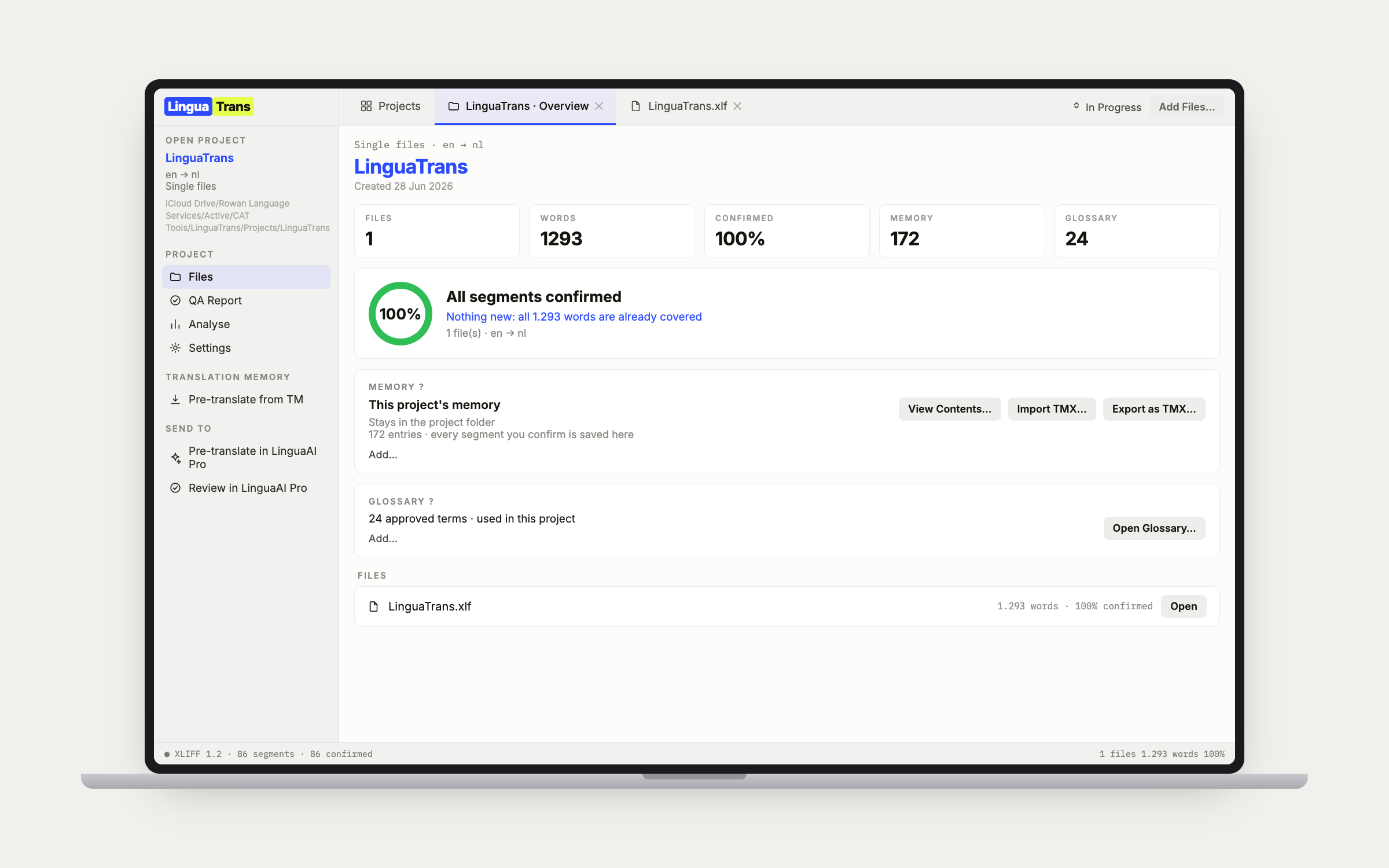
A manifest plus clean subfolders for files, memory, and glossary. Time Machine works, iCloud works, Finder works. Nothing locked in a proprietary database. Source files are copied in, so your originals are never overwritten, and Restore File to Original brings back the bytes the agency sent even when the working file no longer parses. Coverage tells you the moment a project opens how many words are genuinely new, how many the memory already answers, and how many repeat within the batch. Base a new job on a previous one to carry the memory, glossaries, language pair, and client forward. Add Files or Folder takes a whole folder, subfolders and all, so a package unpacked into five subfolders comes in with one pick. Folders of your own live inside a project too: same-named files in different folders are distinct everywhere, flags and QA judgments included, and each folder folds away in the Files list with its own word count and percent confirmed, opens as one Translate All grid, and takes the batch actions from its header. Copy Translated Files Back writes every translated copy over the file it was added from, subfolders and all, so Toolkit can build the return package from the folder it unpacked into, and it names the folder and the counts before it writes anything. Multi-file tabs, with Translate All for one continuous, filterable grid across every file at once.

LinguaTrans project overview with word counts, memory, glossary and file list

File formats

Five bilingual formats, one editor.

What arrived goes back out byte for byte, except the translations and their confirmed state.

Bilingual file formats LinguaTrans opens and writes
FormatComes fromNotes
SDLXLIFFTrados StudioMerge and split segments follow Trados's own structural recipe.
XLIFF 1.2Open standardIncluding the sentence-segmented files Smartling and other cloud systems produce.
MXLIFFPhrase / MemsourceRound-trip proven against the originating tool.
MQXLIFFmemoQRound-trip proven against the originating tool.
TXLFWordfast ProRound-trip proven against the originating tool.

Reading and revising.

Three views onto the same file: read it as a document, see what changed, and look back at what it used to say.

07

The reading pane.

View menu, ⌥⌘R: the open file as running text beside the grid. Paragraphs where the file has them, headings where it says so, bold and italic from the tags, and an untranslated segment shown as its source in grey so the document still reads whole while it is half done. A code-like segment, an Excel line break or a font name in tags, goes small and monospaced so the eye skips over it. The segment selected in the grid is highlighted and scrolled to, a click on a sentence in the pane selects it in the grid, and it updates as you confirm. Target or source, and whether it is open is remembered per project. It is LinguaReview's book view brought into the editor, and it is the answer to whether there is a live preview: your translation read in flow, for every file, agency packages included. Not a page, though. Fonts, columns, images and tables stay in the layout the XLIFF never had.

08

Show Changes.

View menu, ⇧⌘D: every target drawn as a comparison with the file as it was, struck through for what went, coral for what came, tags compared as tags, and the row you are editing left plain. Compare With picks the earlier version. As Received is the pristine copy from when the file was added, so on a file that arrived carrying the client's machine translation it shows what Pro's post-edit and your own edits did to it together. As Pre-translated is a snapshot taken when Pro's version went over the project's copy, so it shows only what you changed since Pro. Flip between the two and the difference is Pro's work on its own. Off by default, and off, the grid is the clean text.

09

History.

A tab in the bottom dock beside Consistency: the selected segment's target in each earlier version of the file, whole. As received, as pre-translated where there is a snapshot, and now, each on its own line with the tags as chips. On a segment that was rewritten rather than tweaked, a word-level difference cannot show you what the sentence used to say; this can.

Claude, at the desk.

Optional, off until you switch it on, and local: LinguaTrans can let Claude Desktop see the project you have open.

10

The Claude Desktop connection.

Settings, Integrations, Add to Claude Desktop. LinguaTrans writes its own entry into Claude Desktop's configuration, so you point at the file once. Restart Claude Desktop and it can answer questions about the project and the file you have open. Which segments are still unconfirmed. How a term was translated before, drawn from the memories the project actually uses. What the glossary says about it. There is nothing to install: the bridge ships inside the app, runs locally and sits behind a key. Start order stops mattering after the first time, so if Claude Desktop is already running when LinguaTrans opens, the tools appear on their own within seconds.

11

Claude reviewing a file.

Ask for a sweep and Claude can propose a new target for a segment, which lands as an unconfirmed draft with its reasoning and the previous wording sitting beside it. Or it raises a flag without touching the text at all: a question, a comment, a suggested fix. Both arrive as review flags marked Claude in the sidebar and the Review tab, and accepting, rejecting and resolving them stays yours. Claude never confirms anything on its own, cannot touch locked segments or segments carrying tags, and its notes stay out of the QA report. With several files open in one grid it sees the whole of Translate All, and names the file when it proposes a target or raises a flag. LinguaAI Pro's own chat can use the same tools, so the questions and the proposals can come from the app that pre-translated the file in the first place. One switch covers both, and Connect LinguaAI Pro sets it up from this side.

Off by default, and it needs the Claude app for Mac. Switched on, what Claude Desktop reads goes to Anthropic under your own Claude account. LinguaTrans itself still calls nothing.

Also in LinguaTrans.

The parts that only show up once a client keeps coming back, and the job stops being a one-off.

12

The memory library.

One memory per project is fine for a one-off. It stops being fine when a client keeps coming back, because ten jobs quietly leave ten memories that each know a tenth of the work. Library memories live outside any single project, filed under the client they belong to, so every job for that client draws on the same ones. As many per client as the work needs, ranked, each with its own mark-down for a memory you only half trust. Order decides where matches come from, Primary decides where your confirmed segments are written, and changing one never moves the other. Every entry records the project it was first confirmed in and the one it was last confirmed in, which a later job never overwrites, so an export whose file name is the same on every job can still be told apart. Copy to Memory, in View Contents, lifts the ticked entries or everything the filters show into another memory, so filtering to one project hands a client a memory of exactly their job and nothing else. Memories take a TMX or a bilingual file someone else translated as a new memory or poured into an existing one, at a mark-down you pick, and a merge leaves out whatever the memory already holds and tells you how many, so a client TMX merged again every job stops doubling the memory.

13

Client glossaries.

A glossary can sit in the project or in the library under its client, ranked exactly the way memories are, on purpose: one idea to learn rather than two. Fold the new termbase every job arrives with into the one you already have, and see precisely what would change before anything is touched. Nothing is ever removed by a merge, so a client sending a shorter list never deletes the terms they left out. Merge a File into This Glossary pours an updated termbase in, and Merge Another Glossary into This One folds two of a client's lists together and retires the one it absorbed, with a copy kept. CSV and tab-delimited TXT come in as Toolkit writes them, commas or semicolons, UTF-8, UTF-16 or Latin-1, including the per-term status column, so a term the client's termbase marks rejected arrives rejected.

14

Character limits and subtitles.

Switch on the Chars column, set the maximum for the job, and every target shows its length against it and turns red when it goes over. Whole-segment, or per line, which is how subtitle limits actually work. Tags never count toward the number. Shift+Return adds a line break as its own chip, so you can reflow a target into as many lines as it needs whatever the source did. Subtitle files arrive as .srt converted by LinguaAI Toolkit, in-cue line breaks intact.

15

Merge and split segments.

Badly segmented SDLXLIFF from an agency can be rejoined or broken apart without leaving the editor. Both operations follow Trados's own structural recipe, validated open, save, and reopen in Trados Studio, and the grid shows the merge gap in the segment-number column exactly the way Trados displays it.

16

Locks that travel.

Lock or Unlock Segment, from the Edit menu, the right-click menu or ⌃⌥L, writes the lock into the file the way the client's own tool writes it, so the padlock is there when the file goes back. The text and the status stay exactly as they were. Lock Empty Segments does the whole file after one dialog with the count, so blanks meant to stay blank are delivered untouched. Your own locks come off with Unlock and no questions asked. Unlock Segments You Locked is the way back from a bulk lock: every lock made in LinguaTrans comes off after one count, and the client's locks are left where they are. A lock the file arrived with belongs to the client, so unlocking it asks first and offers a session-only unlock that leaves the file alone.

17

Review in Word.

For the reviewer who owns Word and nothing else. Export for Review in Word writes the open file as a table — number, source, target, tags as {1} placeholders, locked rows greyed — and they edit the Target column with Track Changes on or off, whichever they prefer. Import Reviewed Word File brings that column back, and every changed row lands as an unconfirmed draft carrying a Reviewer's version flag for you to accept or reject in the Review tab. Rows the app would have to guess at are refused rather than imported wrong: a mangled placeholder, moved tags, an edited source, a locked row. It lists them by number so you can go and look.

18

Client rules.

A client's do's and don'ts as regular expressions, saved with the project. Each rule has a name, a target pattern, a Forbidden or Required verdict, and an optional source pattern that narrows it to the segments it should apply to. The sheet counts, live as you type the pattern, how many segments the rule would flag, so you find out it is too greedy before you save it rather than after. Flags land in their own sidebar bucket and their own section of the QA report, and a job started from a previous one inherits the rules the way it inherits the memories and glossaries.

19

Reading on iPad.

A pretranslation is far easier to judge when you read it the way it is meant to be read, as continuous prose, away from the desk. LinguaReview, the reading companion for iPhone, iPad and Mac, opens the same bilingual files, lays the translation out like a book, and lets you flag a sentence and leave a note. It never writes the file. Flags travel both ways over iCloud: Claude's questions and your own notes made on the Mac appear on the iPad within moments, and resolving one there brings it back resolved. The Mac merges per flag rather than replacing its whole set, so a flag added on the iPad no longer wipes notes only the Mac had, and flags can be removed now, one at a time or in bulk. The Review tab says whether it synced both ways or exactly why not, with an arrow to force it, and a sidecar export is still there for handing them over as a file. Either way every flag arrives as its own bucket, ready to work through.

20

Project notes.

A scratchpad per project, from Notes on the project page: why the 100% matches were changed, what the client answered, the things that otherwise live in your head until the next job for them. It is one plain text file, Notes.txt, sitting in the project folder, so it moves with the project, opens on another Mac, survives a reinstall and reads in any editor. It saves itself. It never leaves the folder, so it is not in a delivered file, a return package or a report. Claude can read the same notes, add to them and edit them, and what it writes is headed with its name and the date.

21

The Admin link.

Optional, off by default. Switch it on and a project ties to the job it bills to: its value, status, and deadline on the project overview and the Home card, and client names drawn from your LinguaAI Admin list instead of free-typed. Mark a job In Progress or Delivered from LinguaTrans and it syncs back through Admin's own status logic, so the delivery date, activity log, and calendar all update as if you had done it there. A project can be tied to its Admin job as you create it, picked from a list of your clients rather than every job at once, and once a PO has matched, the link follows that job: renaming the PO in Admin renames it here instead of breaking the link. The money statuses stay Admin's alone.

22

The LinguaAI suite.

File handoff between LinguaAI Toolkit (convert .docx, .pptx, .xlsx, .srt and .xml to XLIFF and back, plus unpack and repack Trados, memoQ and Wordfast packages), LinguaTrans (the bilingual editor), and LinguaAI Pro (AI pre-translate and review). Single-click handoffs in both directions, and the file always comes back whole. No shared databases and no hidden state between apps: the file is the contract. See the suite → Trados packages on a Mac →

23

Mac-native throughout.

Swift and AppKit, built for macOS 26, with Liquid Glass on the chrome and the dense work surfaces left flat and legible, because glass behind text you stare at all day costs readability. A real Apple Help Book in the Help menu. Quick Look a bilingual file in Finder without opening the app. Help, Ask a Question opens a help desk that answers in your own words and your own language, read out of the manual rather than guessed at, and the Help Book ends with a troubleshooting chapter written symptom first from real cases. Native spell check, grammar, and Look Up in the target, with smart quotes, autocorrect, and predictive completion deliberately switched off: a translation is a precise rendering of a source, not a draft the system should improve.

LinguaTrans has no AI of its own, and your projects, memories and glossaries are plain files in folders you own. Nothing leaves your Mac unless you switch something on: the optional Admin link, or the Claude Desktop connection.
Buy once. Own it.

LinguaTrans is €49,99, one payment, no subscription. LinguaAI Pro and LinguaAI Toolkit are available separately if you want AI pre-translation, review, or format conversion. A working translator earns the price back in under an hour.